GitLab
TeXlyre can back up your projects to GitLab repositories using a personal access token. Tokens are stored encrypted in your browser's local storage and are never transmitted to external servers.
Generating a Token
Navigate to GitLabUser settingsAccess tokens.
Click Add new token.
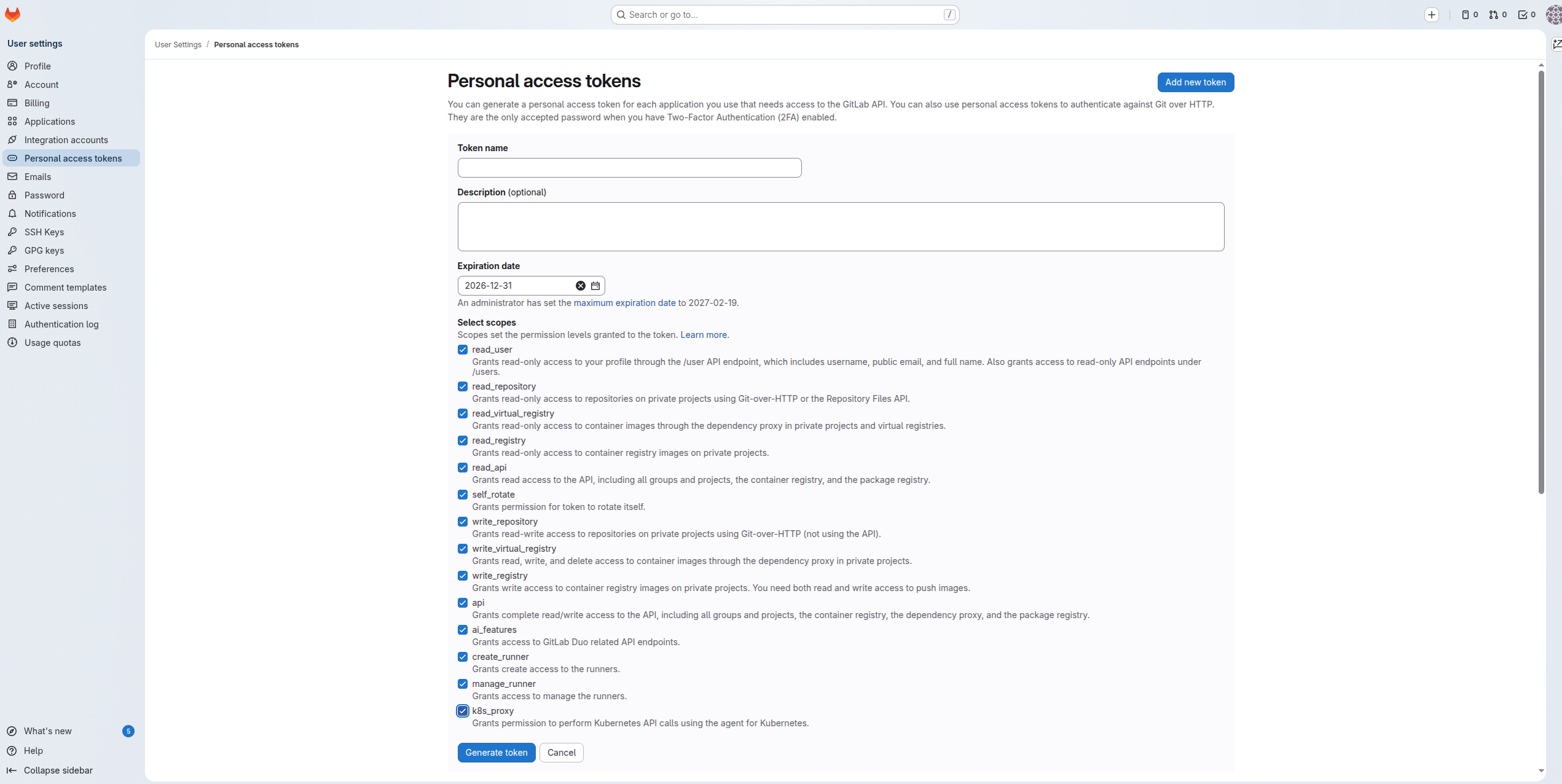
Enter a descriptive Token name such as TeXlyre and set an Expiration date.
Required Scopes
Enable the following scopes:
| Scope | Purpose |
|---|---|
read_user | Read profile information |
read_repository | Read repository contents |
write_repository | Push changes to repositories |
api | Full API access |
Click Generate token and copy the token immediately as GitLab will not display it again.
Adding the Token to TeXlyre
- Open TeXlyre and navigate to Backup → GitLab.
- Paste your token into the GitLab Personal Access Token field.
- Click Connect.
- Select a repository (preferably private; must already contain at least one file, e.g.
README.md, as TeXlyre does not create repositories). - Click Next.
- Select a branch and click Connect.
- Enter your TeXlyre account password to securely store your token.
- Click Unlock.
Self-Hosted GitLab
If you use a self-hosted GitLab instance, open SettingsBackupGitLabAPI endpoint and set it to your instance (e.g. https://gitlab.example.com).
Token Expiry
When your token expires, backups will stop silently. Regenerate your token on GitLab and update it in TeXlyre settings before the expiry date.